Unboxing a new Huawei phone or tablet is exciting until you start looking for the apps you already use every day. Huawei’s updated guide turns that moment into a clear sequence: begin with AppGallery, let microG handle the Google services it needs, and use GBox only for apps that are not available directly.
Set up one Google app first
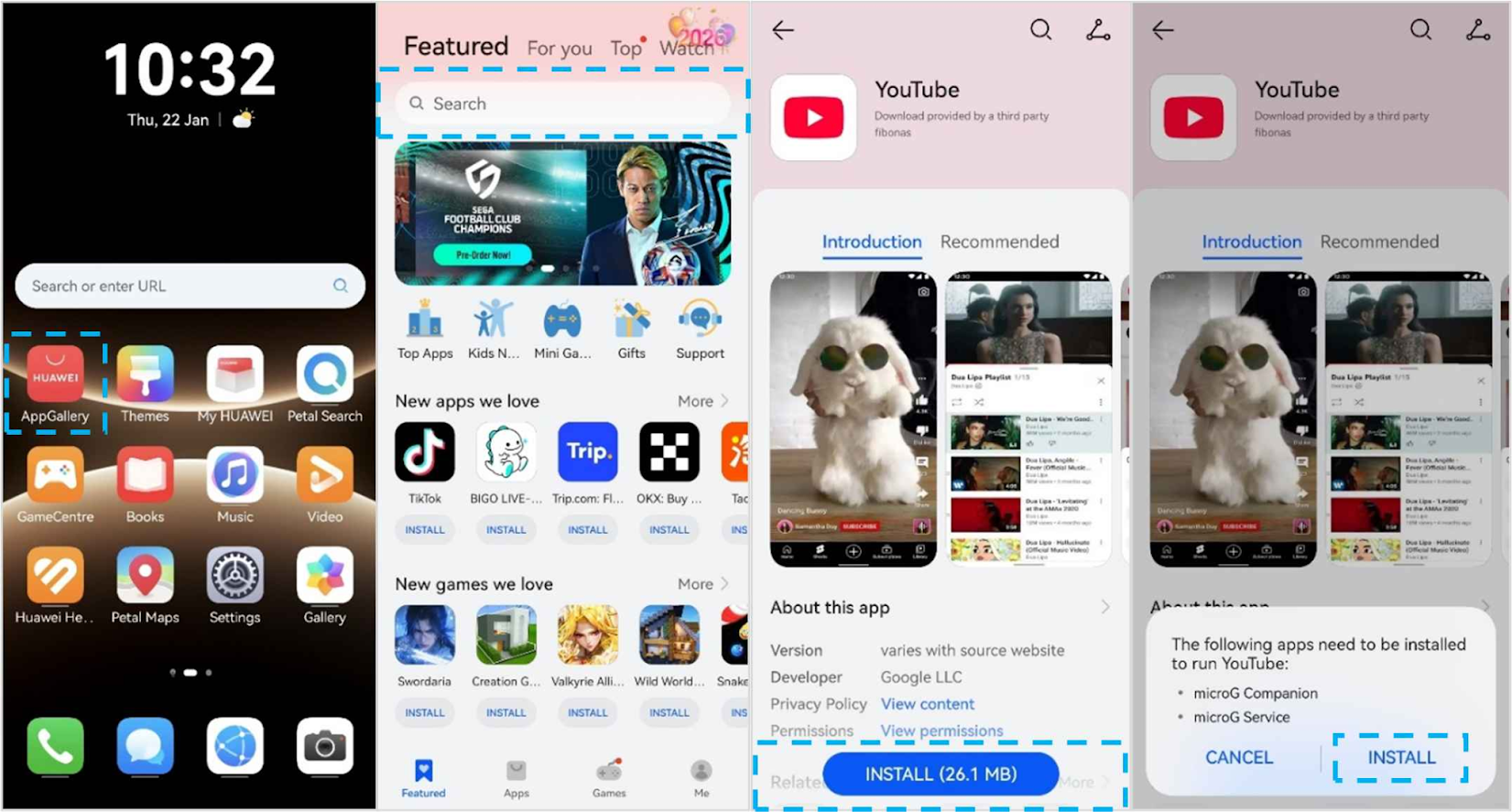
Open AppGallery and search for YouTube. Tap Get, download it, and install it. When the phone tells you that extra apps are required to run YouTube, tap Install.
microG Companion and microG Service are then added automatically. This is useful on a new device because you do not have to find or configure the components separately before opening the Google app.
Sign in before installing everything else
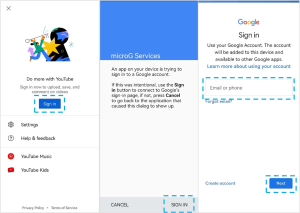
Open YouTube and tap Sign in. You will be taken to microG Services. Tap SIGN IN again, and the regular Google login page appears. Enter your Google account details and complete the sign-in.
Testing one app first is a sensible way to confirm that the huawei google play store setup is working before you spend time installing everything else.
Add missing apps through GBox
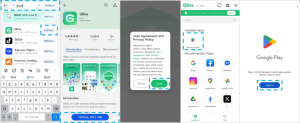
Next, search AppGallery for the other apps you need. If one is unavailable, search for GBox in AppGallery and install it.
Open GBox, sign in, and it will take you to Google Play inside GBox. Search for the missing app there. Huawei’s guide uses Netflix as the example, but the important point is the sequence: AppGallery first, GBox second.
Leave the background pieces alone
Once the phone is working, it may be tempting to remove apps that do not have obvious icons you use every day. Huawei specifically warns against uninstalling GBox, microG Companion, or microG Service.
microG enables Google sign-in and background services. GBox acts as the gateway when you need Google apps that are not available directly through AppGallery.
A practical first ten minutes
A useful first-device routine is to set up YouTube, confirm the Google account sign-in, and then test one app that requires GBox. This gives you a working example of both routes before you start adding a long list of apps.
After that, open AppGallery’s Me > Update page once so you know where future updates appear. You do not need to change anything else if the apps are working. The point of the first setup is to understand the pattern: AppGallery for the first search, microG when a Google app needs sign-in support, GBox when the app is missing, and the normal update process afterwards.
That short test also makes later troubleshooting much easier because you already know that the account, microG, GBox, and both installation routes worked on the device at least once.
Set up updates while the phone is still new
Open AppGallery, go to Me, and tap Update so you know where updates will appear later. If AppGallery shows a notice about updates from third-party sources, tap Update.
Apps downloaded from GBox update automatically in batches. Knowing this from the start prevents confusion when one app updates through AppGallery and another changes through GBox.
Use the same rule for future apps
The huawei google play store routine is easy to remember on a new Huawei device: check AppGallery first. If the app is available, install it there. If it needs Google services, allow microG to install. If the app is missing, move to GBox.
That gives you a repeatable setup instead of treating every new app as a separate problem.